How to control a stage timer from your phone
By Big Countdown team (Step Solution LLC) · Published October 28, 2026 · 4 min read
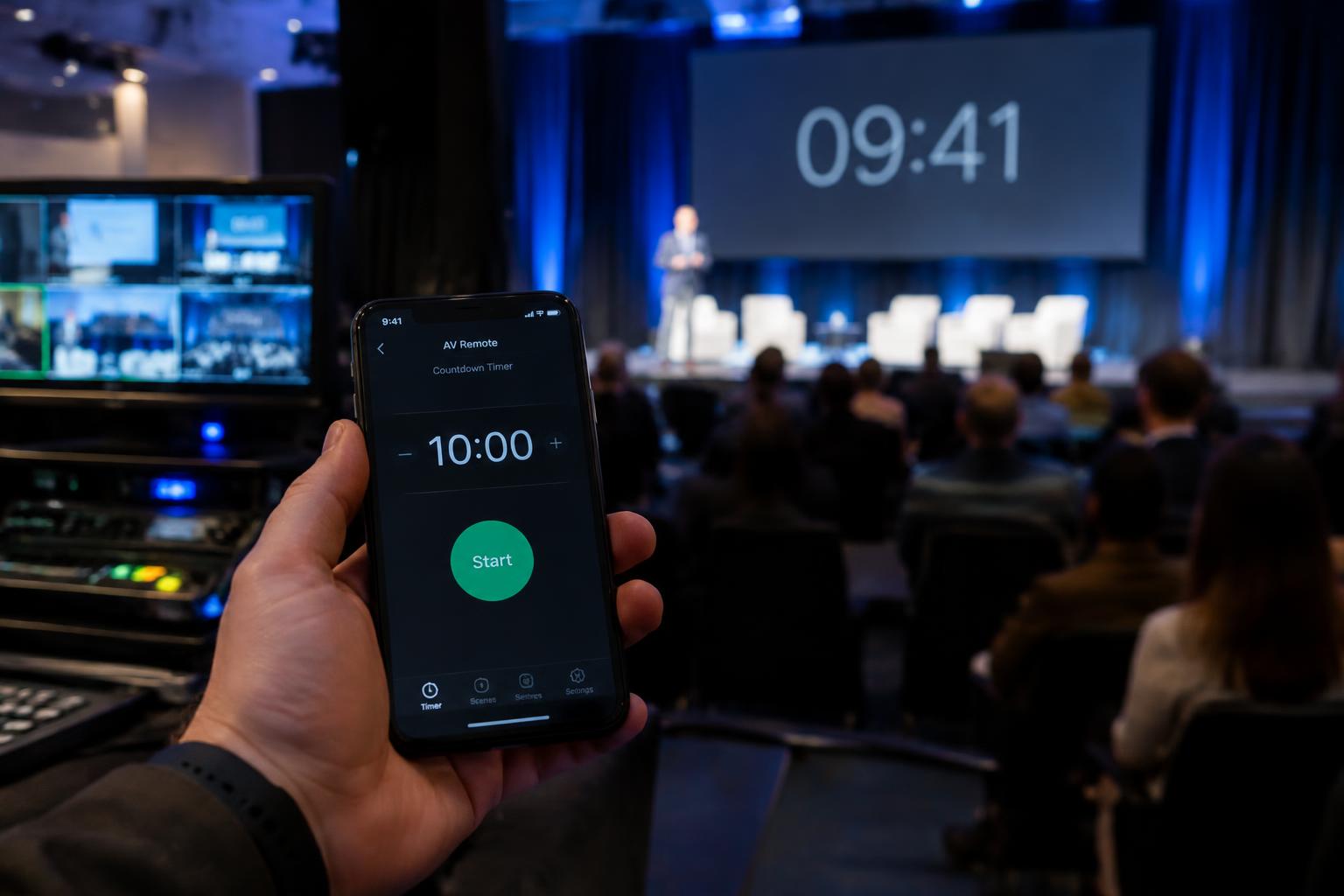
The person running the timer is rarely standing next to the screen it shows on. The stage screen is plugged into a laptop at the front of house — and the stage manager is backstage with a headset. A phone remote solves this: the big screen shows the countdown, and your phone starts, pauses and resets it from anywhere in the venue.
How it works
A browser-based timer like Big Countdown creates a private room for your event. The room has two links: a stage link you open on the screen the speaker sees, and a remote link you open on your phone. Everything you tap on the phone — start, pause, reset, change the length — appears on the stage screen in about a second.
What you need
- Any laptop or computer connected to the stage screen or projector.
- A phone with a browser — no app to install.
- Internet access at the venue for both devices (the timer syncs through the cloud).
Set it up before doors open
- Sign in on the laptop, open the timer and switch to Phone remote mode.
- Open the stage link on the screen the speaker will see, full screen.
- Scan the QR code with your phone to open the remote.
- Test start, pause and reset from the phone while watching the stage screen.
- Keep the links private — anyone with the remote link can control your timer.
More than start and stop
A good phone remote does the jobs that actually happen mid-show: sending a short message to the speaker ("2 mins left", "Wrap up"), loading the next segment from your event rundown, and letting the timer count up in red when a speaker runs over. All of these work from the phone in Big Countdown, free for timers up to 3 minutes.
Drafted with AI assistance, then checked and edited by the Big Countdown team.