Presentation countdown timer
Presentation timer
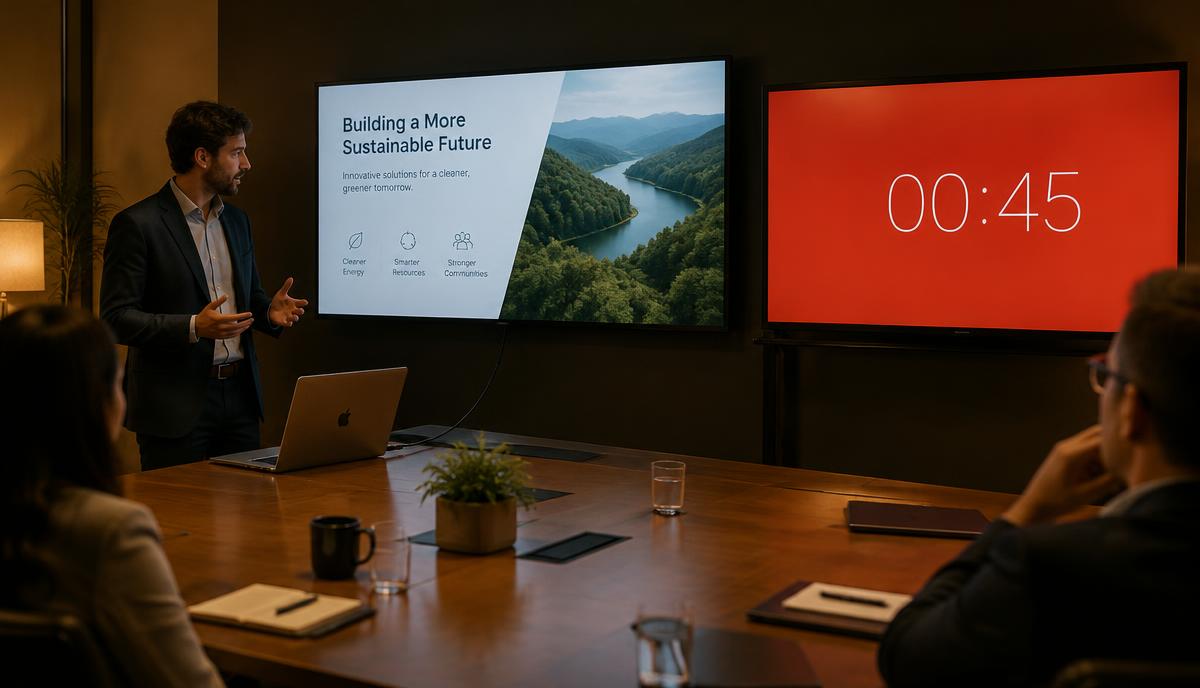
Pitches, client demos and internal talks go better when the presenter can see the clock. Put a full-screen countdown on a second display and keep your slides on the first.
Why presenters use Big Countdown
Works on a second screen
Run slides on one display and the timer full screen on the other.
Red when time is short
A clear colour change, then a red count-up if you run over.
A colleague can run it
With the phone remote, someone at the back starts the clock and sends "Wrap up" silently.
Quick presets
30s, 1m, 5m, 10m, 30m, 1h — or type any time.
Try it instantly
Use the free 3-minute demo with no sign-up.
Suggested timings
| Segment | Length | Red warning |
|---|---|---|
| Elevator pitch | 1m | last 15 sec |
| Startup pitch | 5m | last 1 min |
| Client demo | 10m | last 2 min |
| Talk | 30m | last 5 min |
Typical starting points — adjust to your own run-of-show.
How to set it up
- 1HDMI screen: plug in a second screen and open Big Countdown there. Phone remote: open the stage link on that screen instead.
- 2Choose the length and press F for full screen.
- 3Press Space as you start, or let a colleague start it from their phone.
- 4Glance over when it turns red; overtime counts up if you go long.
Shortcuts: Space start/pause · R reset · B black screen · F full screen.
Questions
- Can I practise with it?
- Yes — the free 3-minute demo is perfect for rehearsing a pitch.
- Does it work with PowerPoint or Keynote?
- It runs separately in your browser, so it works alongside any slide tool.
- Can someone else control it?
- Yes. Share the phone remote link and they can start, pause and send messages.
- What does a longer timer cost?
- $29 once for lifetime access to any length.
Free up to 3 minutes. $29 once for any length.
No subscription · 14-day money-back guarantee · runs in any browser.
Try it now